Two-Factor Authentication (2FA) Setup
Two-Factor Authentication adds an extra layer of security to your LinkedIn account by requiring a second verification step beyond your password. When connecting LinkedIn to We-Link, how you configure 2FA directly affects whether your automation can run hands-free.
Verification Methods
We-Link supports two 2FA methods:
| Method | How It Works | Automation Impact |
|---|---|---|
| Authenticator App (recommended) | We-Link generates 2FA codes automatically in the background | Fully hands-free — no manual intervention needed |
| Phone Number (SMS) | An OTP is sent to your phone; you must submit it via API | Requires manual step each time LinkedIn challenges the login |
Using an authenticator app is the #1 recommendation for reliable automation. It allows We-Link to resolve 2FA challenges automatically, keeping your sessions alive without interruption. SMS-based 2FA requires human intervention and is the most common cause of automation failures.
Why We-Link Needs Your 2FA Credentials
Providing your 2FA credentials to We-Link is necessary for:
- Seamless automation — When using an authenticator app, We-Link generates 6-digit codes in the background. This prevents your automation from pausing and allows continuous account activity without manual intervention.
- Uninterrupted access — Without 2FA credentials, any scheduled tasks will fail when LinkedIn prompts for verification.
- Automatic session refresh — We-Link's Session Persistence engine uses the stored 2FA secret to re-authenticate sessions automatically.
If you update your 2FA settings on LinkedIn, you must also update the 2FA credentials in We-Link. Failing to do so will prevent successful login and break auto session refresh.
Step-by-Step Setup
Step 1: Enable 2FA on LinkedIn
- Go to LinkedIn → Settings & Privacy → Sign in & security → Two-step verification
- Click to start the 2FA setup process
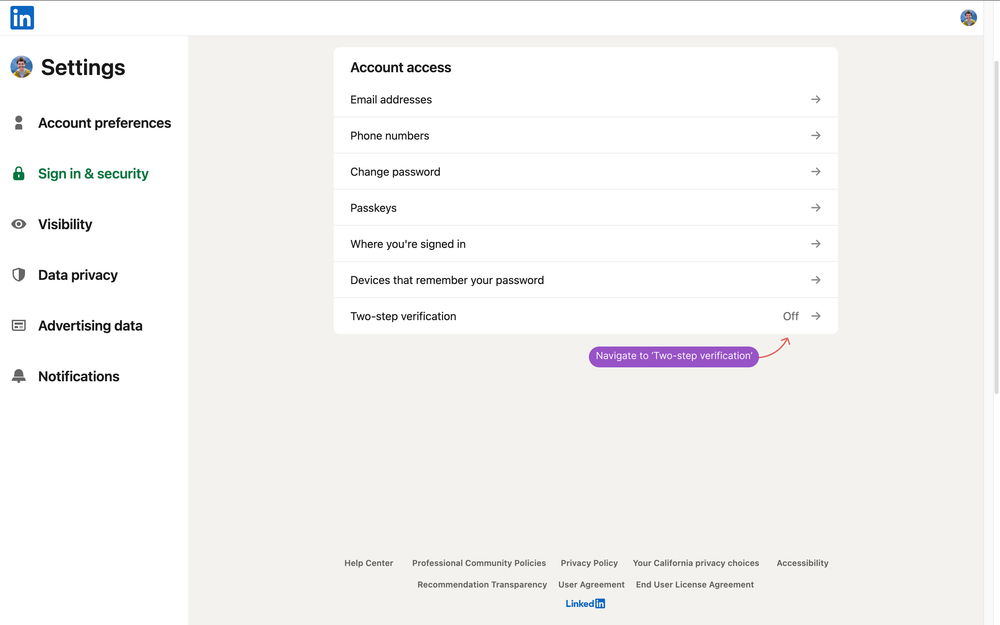
If 2FA is already enabled on your LinkedIn account, you'll need to turn it off and re-enable it to generate a new secret key that you can provide to We-Link.
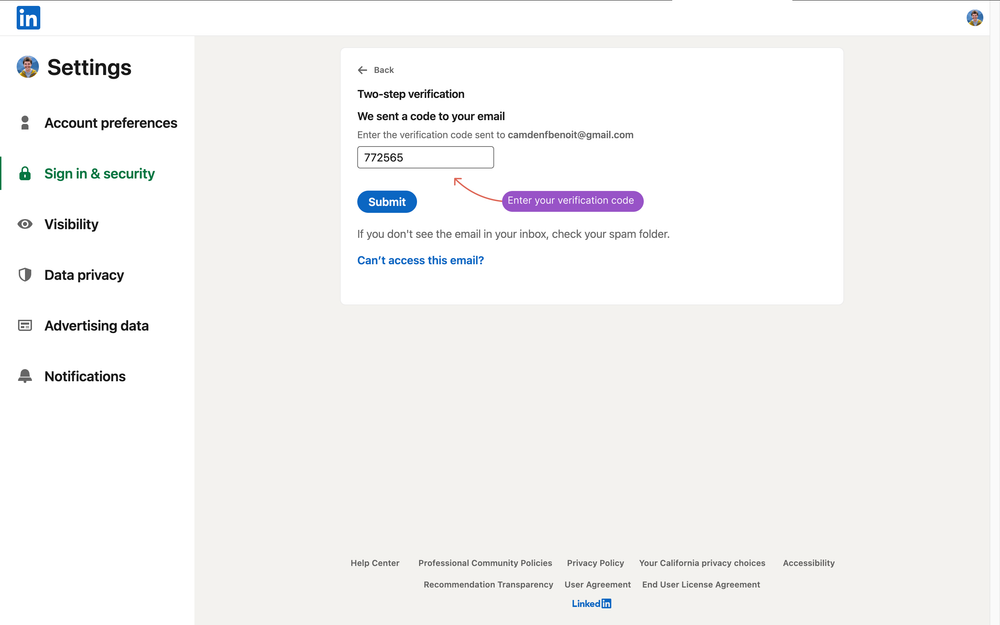
Step 2: Verify Your Email
LinkedIn will send a 6-digit verification code to your registered email address. Enter that code on LinkedIn to continue the setup.
Step 3: Choose Your Verification Method
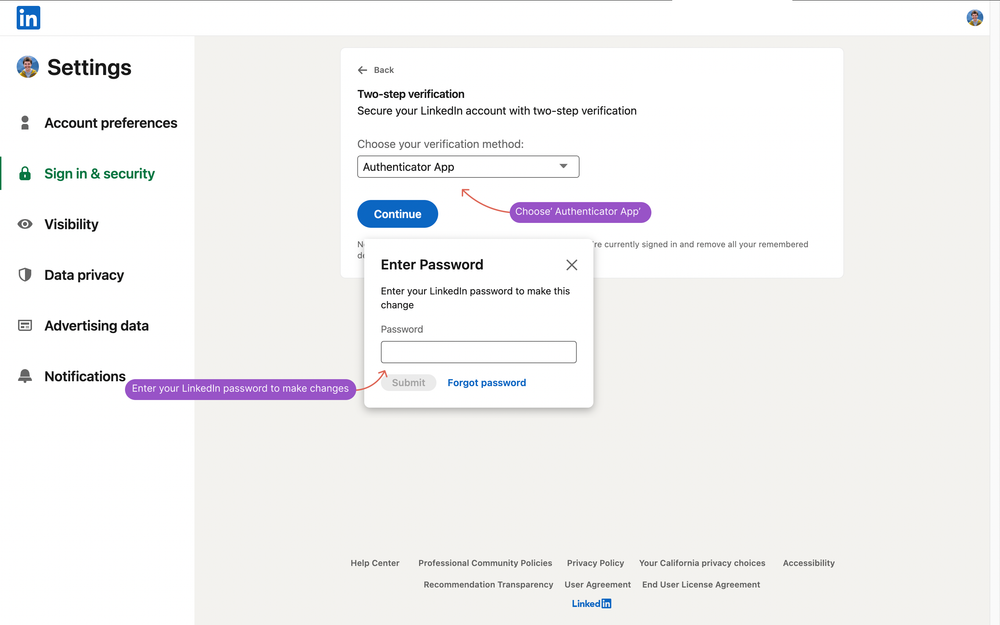
When prompted, select your preferred 2FA method:
- Authenticator App — for fully automated, hands-free operation
You will be asked to confirm your LinkedIn password before continuing.
Step 4: Connect LinkedIn with We-Link
If you selected Authenticator App:
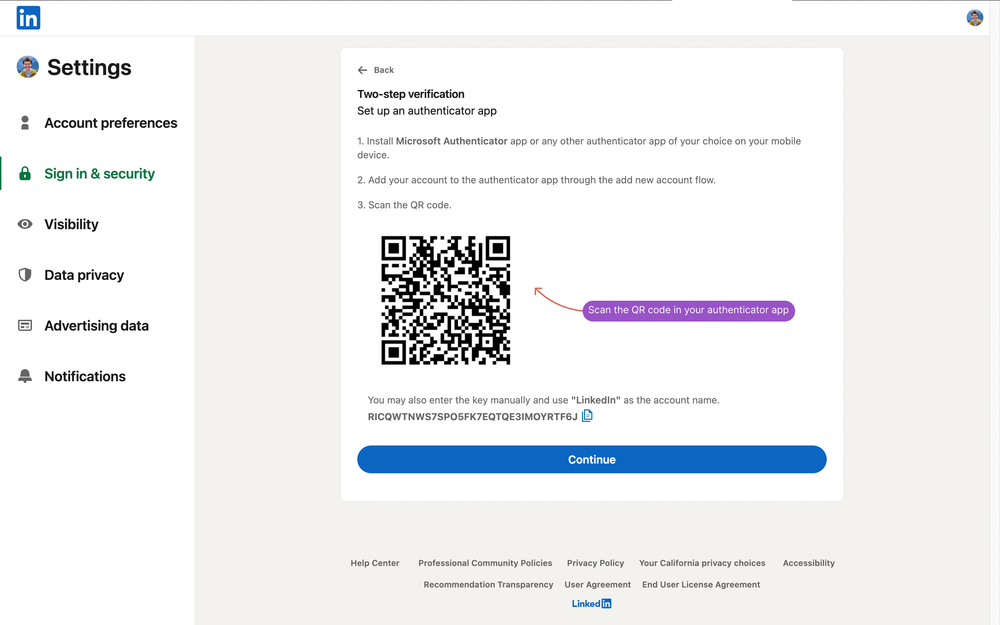
- LinkedIn will display a QR code and a secret key
- Scan the QR code using your preferred authenticator app (Google Authenticator, Microsoft Authenticator, Authy, etc.)
- Copy the secret key (the text shown below the QR code)
- Paste this secret key into the
twoFASecretfield when calling thelogin_v2API
{
  "email": "user@example.com",
  "password": "securePassword123",
  "twoFASecret": "JBSWY3DPEHPK3PXP",
  "proxy": {
    "location": "US"
  }
}
If you selected Phone Number:
- Skip the
twoFASecretfield when callinglogin_v2 - You will need to handle the
LOGIN_PIN_REQUIREDwebhook event and submit the OTP using thelogin_codeAPI
Step 5: Activate 2FA on LinkedIn
On LinkedIn, click Continue to proceed:
- Authenticator App — Open your authenticator app, copy the temporary 6-digit code, and paste it into LinkedIn when prompted
- Phone Number — Enter the OTP sent to your phone when prompted
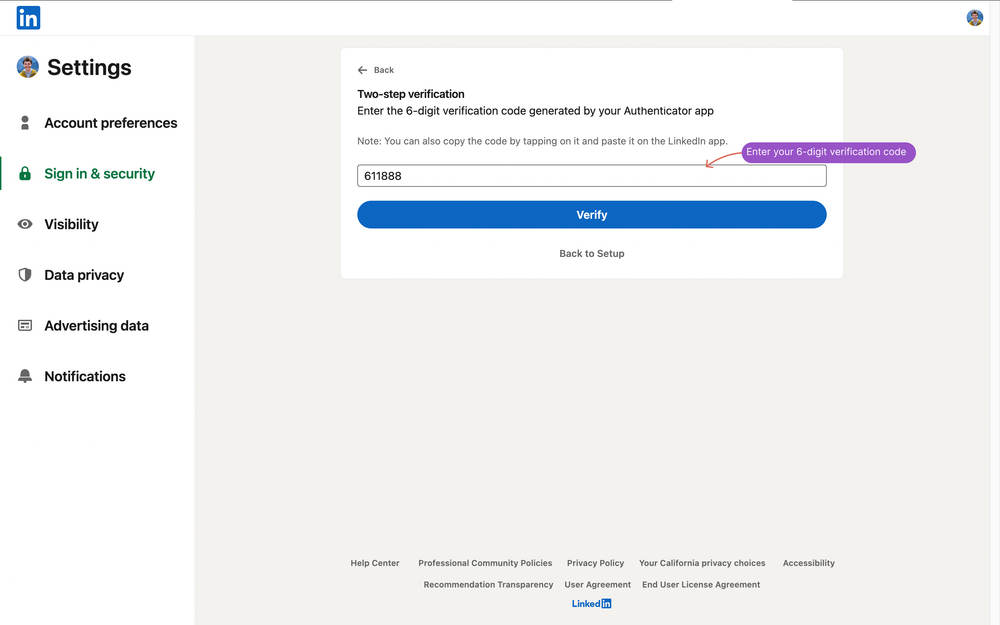
Step 6: Verify the Connection
Once 2FA is successfully enabled on LinkedIn:
| Method | What Happens Next |
|---|---|
| Authenticator App | Call the login_v2 API with the twoFASecret. We-Link resolves 2FA automatically — you'll receive a SUCCESS webhook when the account is connected. |
| Phone Number (SMS) | Call the login_v2 API without twoFASecret. When you receive a LOGIN_PIN_REQUIRED webhook, call the login_code API with the OTP sent to your phone. |
Updating 2FA Credentials
If you change your 2FA settings on LinkedIn (e.g., switch from SMS to authenticator app, or re-enroll the authenticator):
- Repeat the steps above to get the new secret key
- Verify the connection using the
/meendpoint
Troubleshooting
| Problem | Cause | Solution |
|---|---|---|
LOGIN_PIN_REQUIRED webhook received unexpectedly | twoFASecret is missing, incorrect, or LinkedIn 2FA was re-enrolled | Provide the correct, current secret key from your authenticator app setup |
WRONG_PASSWORD after enabling 2FA | LinkedIn password changed during 2FA setup | Reconnect with the correct password |