Authentication
Every request to the We-Link API must be authenticated using your unique credentials. We-Link uses a standard API Key and Secret Key mechanism.
Getting Your Credentials
To start using the We-Link API, you need to create an API key and secret key. The API key acts as a unique identifier for your integration, and the secret key acts as a password that ensures only authorized systems can access the features you've enabled. Together, they help you control access, maintain security, and monitor usage.
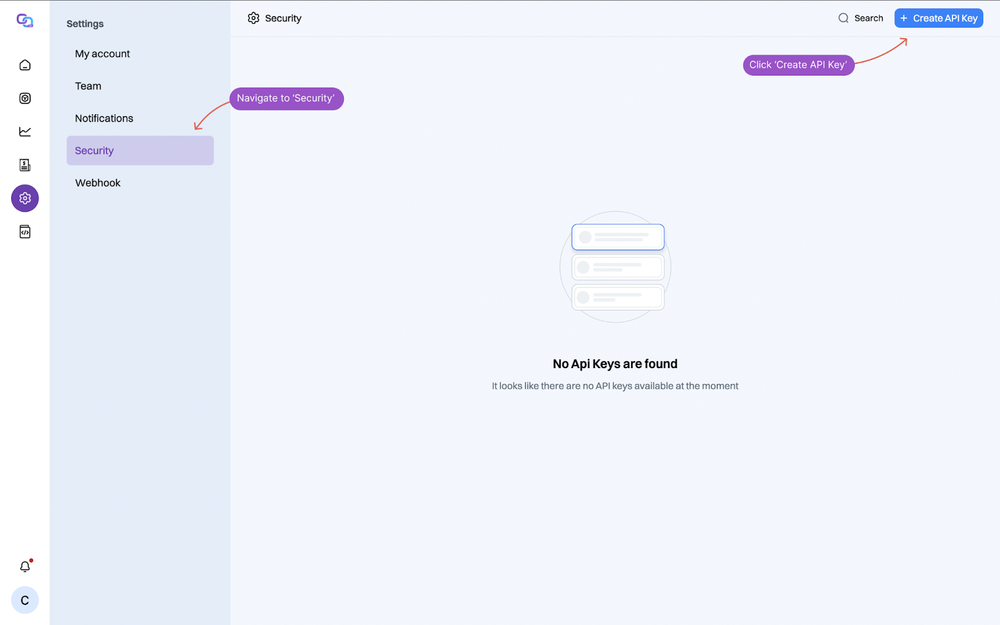
Step 1: Go to the Security Tab
From your We-Link dashboard, head to Settings → Security. Then click the Create API Key button.
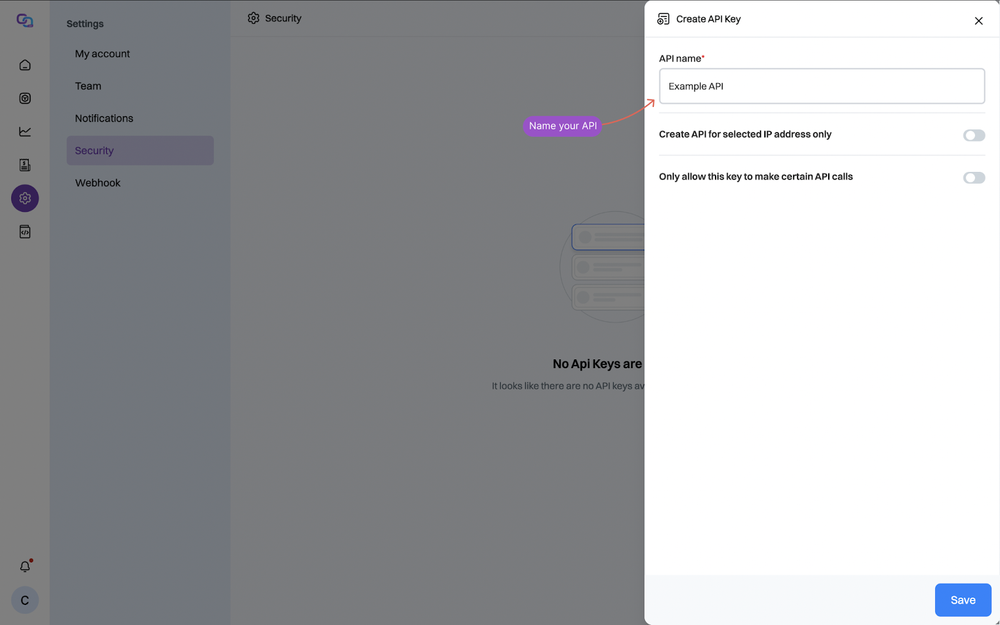
Step 2: Name Your API Key
Give your API key a clear name so you can easily identify it later. This is especially useful if you're managing multiple integrations or environments.
Examples:
- "Client CRM integration"
- "Internal staging key"
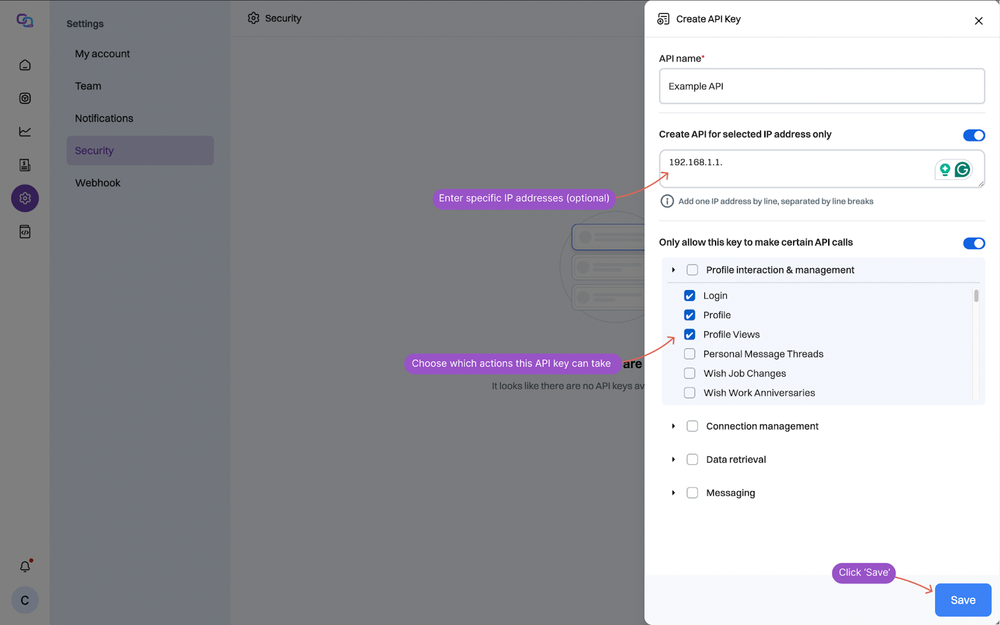
Step 3: Customize Key Access
You can control exactly how the key is used:
- IP restrictions — Limit the key's usage to specific IP addresses. This is strongly recommended for security.
- Allowed actions — Choose which API calls this key can make, such as sending messages, retrieving profile data, or triggering follow-ups.
Step 4: Save and Store Your Keys
After setting permissions, click Save. Your API key and secret key will appear on screen.
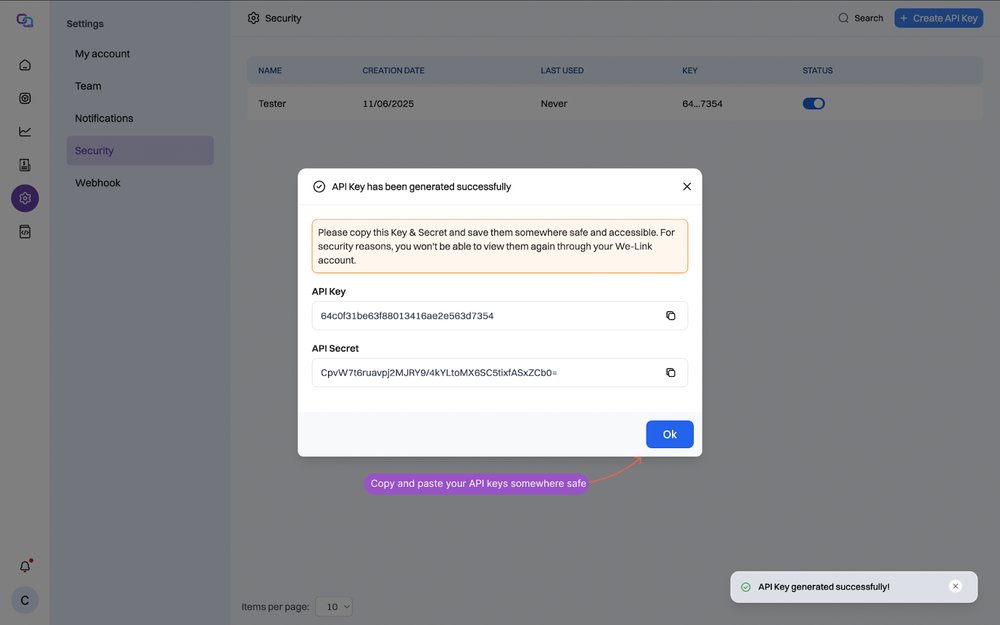
These credentials are only shown once. Copy and store them somewhere safe — We-Link does not display them again. If they're lost, you'll need to create a new key.
Passing Credentials
Include your keys in the headers of every HTTP request:
POST https://api.we-link.ai/api/v1/login_v2
Content-Type: application/json
x-api-key: YOUR_API_KEY
x-api-secret: YOUR_API_SECRET
Example Request
// Headers
{
  "x-api-key": "12345-abcde-67890-fghij",
  "x-api-secret": "98765-zyxwv-43210-utsrq",
  "Content-Type": "application/json"
}

// Body
{
  "email": "user@example.com",
  "password": "securePassword123",
  "proxy": {
    "location": "US"
  }
}
For Cursor or Claude Desktop, add the same x-api-key and x-api-secret to your MCP server configuration. See the MCP Server guide.