Creating a Subscription
To go beyond testing and start using the full capabilities of the We-Link API, you need to upgrade from your free trial to a paid subscription. A subscription gives you access to your billing dashboard, where you can track usage, view past invoices, manage your payment method, and monitor your available credits.
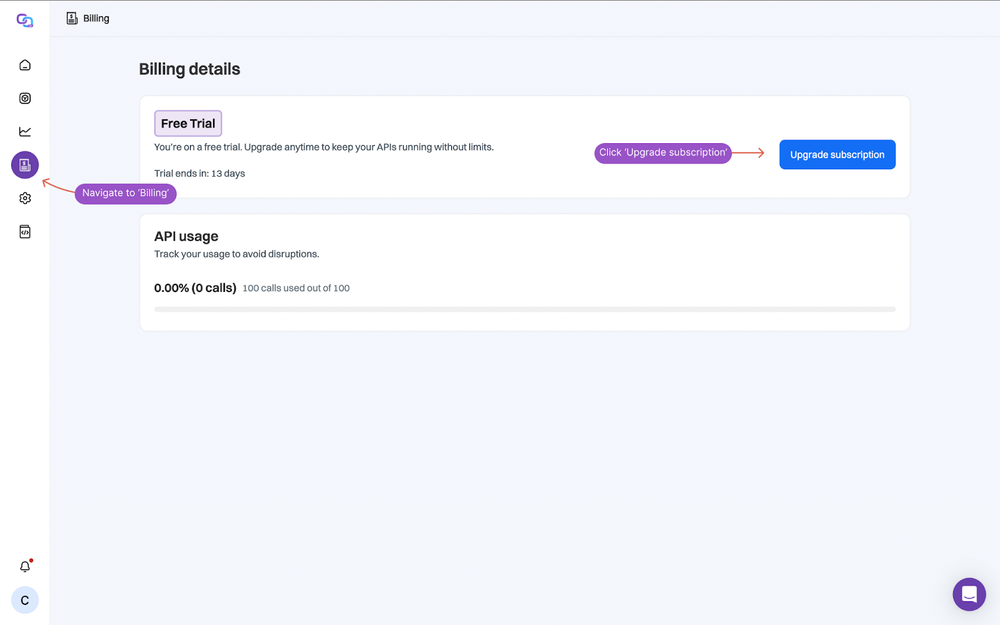
Every new We-Link account includes 100 free API credits with 14 days of validity for testing. When you're ready for production usage, follow the steps below to upgrade.
How to Create Your Subscription
Step 1: Open the Billing Page
From your We-Link dashboard, go to the Billing tab and click Upgrade subscription to convert your trial account into a full subscription.
Step 2: Choose the Number of Credit Blocks
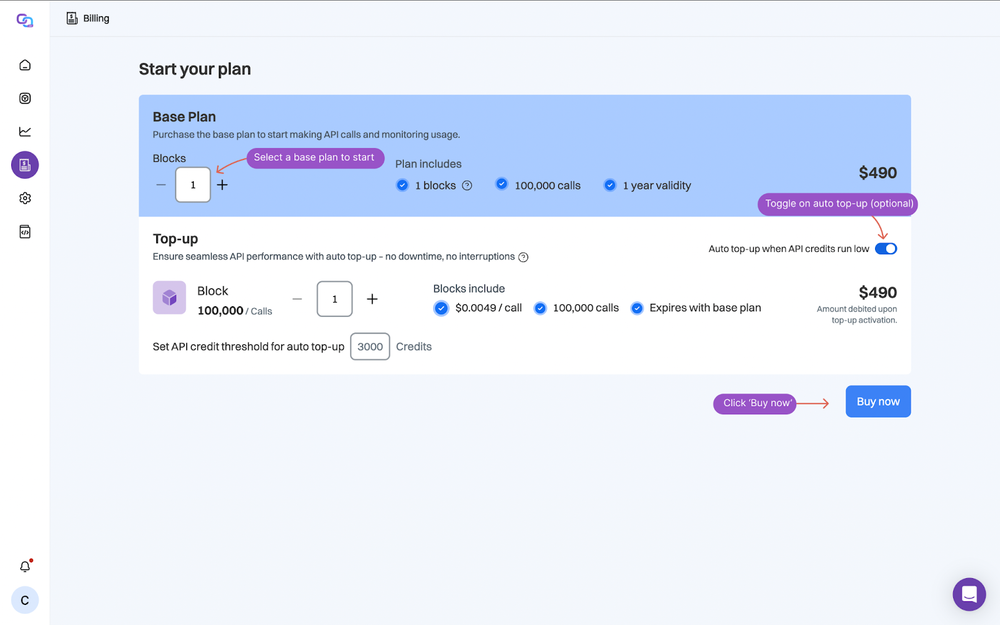
Select how many blocks of credits you want to purchase. Each block includes 100,000 credits. Credits are added to your account immediately and are valid for one year.
You can also enable auto top-up during this step — see Setting Up Auto Top-Up for details.
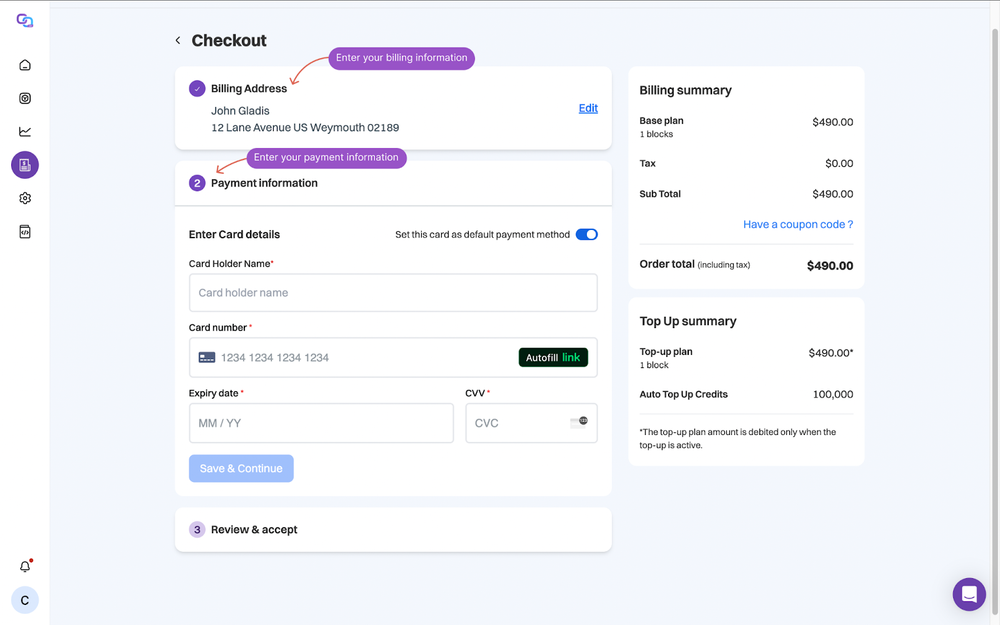
Step 3: Enter Billing and Payment Information
Fill in your billing and payment details, then review and confirm your purchase. Once complete, your subscription is active and your API account is fully functional.
Setting Up Auto Top-Up
Auto top-up automatically purchases additional credit blocks when your balance drops below a threshold you define. This ensures your API usage continues without interruption.
Step 1: Open the Billing Page
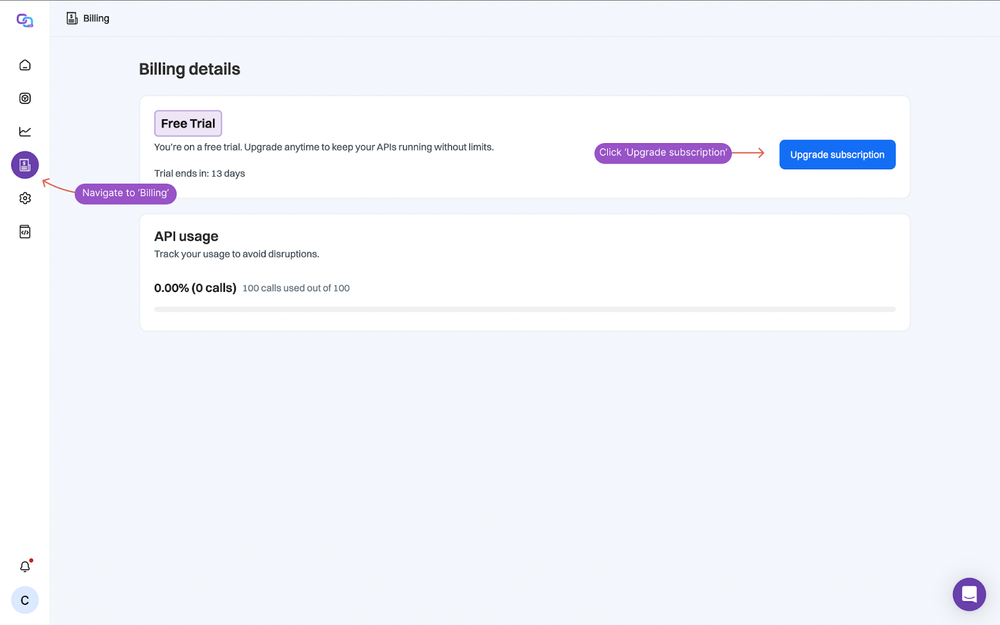
From your We-Link dashboard, go to Billing. Once you have an active subscription, you can view your current plan, payment method, past invoices, and credit balance.
Step 2: Enable Auto Top-Up
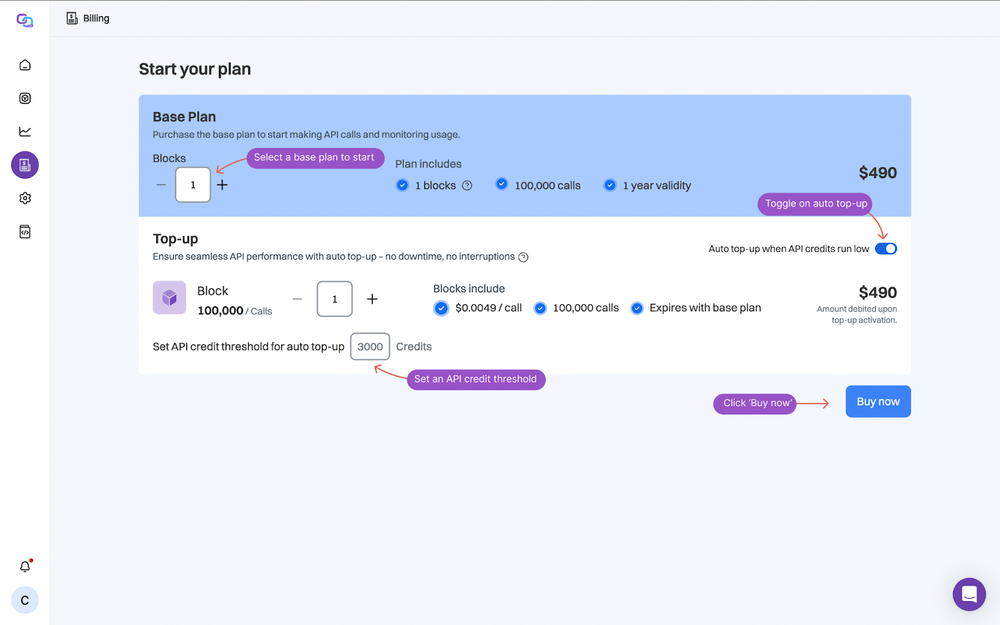
Toggle on Auto top-up and configure:
- Threshold — The credit balance at which an automatic top-up is triggered
- Top-up amount — The number of credit blocks to purchase each time the threshold is reached
Step 3: Confirm Payment Details
Fill in your billing details and payment method, then review and confirm. Once saved, auto top-up is active and credits will be replenished automatically.
If you need help estimating usage or choosing a top-up threshold, reach out to our support team via the chat in the bottom right corner of your dashboard.
Next Steps
- Review the Pricing page for a simple plan overview
- Create your API keys to start making requests
- Review Rate Limits to plan your credit usage
- Follow the Quick Start guide to connect your first account
Still have questions? Reach out to our support team.