How to Use Two-Factor Authentication (2FA) in WeLink
Two-Factor Authentication (2FA) adds an extra layer of security to your LinkedIn account. It helps prevent unauthorized access by verifying your identity using two steps your password and an additional verification method.
When connecting LinkedIn 2FA to WeLink, you can choose between two methods of verification:
- Authenticator App
- Phone Number (SMS) Authentication
Using an authenticator app allows the PINs to be resolved automatically in the background. This means your automation runs smoothly.
However, when using phone number authentication, you will need to manually submit the OTP (One-Time Password) sent to your phone for verification.
Why You Need to Provide 2FA Credentials to WeLink
Providing your 2FA credentials to WeLink is necessary to:
- Seamless Automation: When using an authenticator app, WeLink can automatically resolve 6-digit codes in the background. This prevents your automation from pausing and allows continuous account activity without manual intervention
- Ensure uninterrupted account access: Without your 2FA credentials, any automation or scheduled tasks may fail when LinkedIn prompts for verification.
If you update your 2FA settings on LinkedIn, you must also update the 2FA in WeLink. Failing to do so may prevent successful login
In this article, weʼll walk you through the step-by-step process of setting up 2FA and connecting it with WeLink.
Step 1: Enable 2FA on LinkedIn
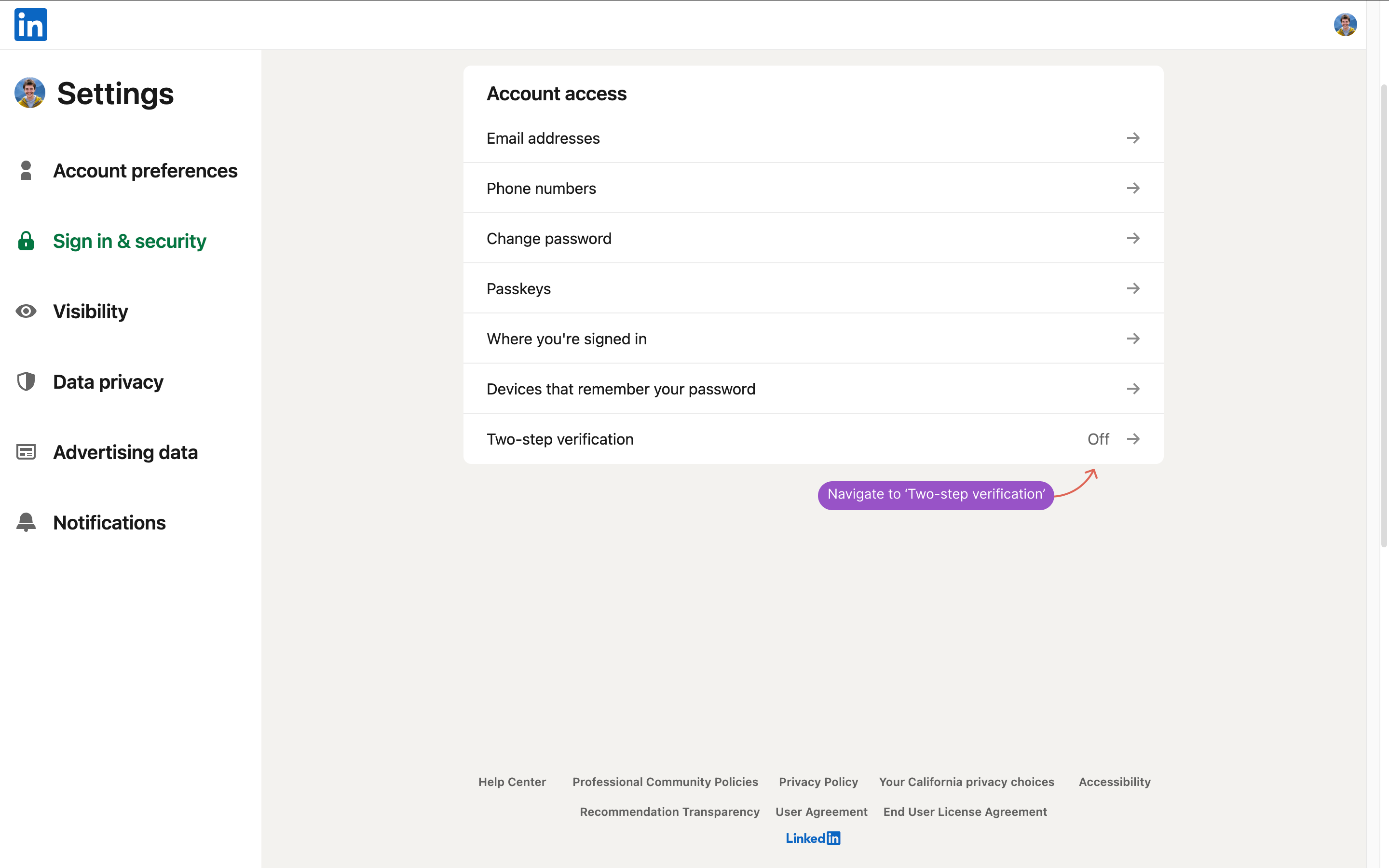
Go to LinkedIn → Settings & Privacy → Sign in & security → Two-step verification, and start the process to enable 2FA.
If you already have 2FA enabled, youʼll need to turn it off and re-enable it to generate a new secret key
Step 2: Verify your email
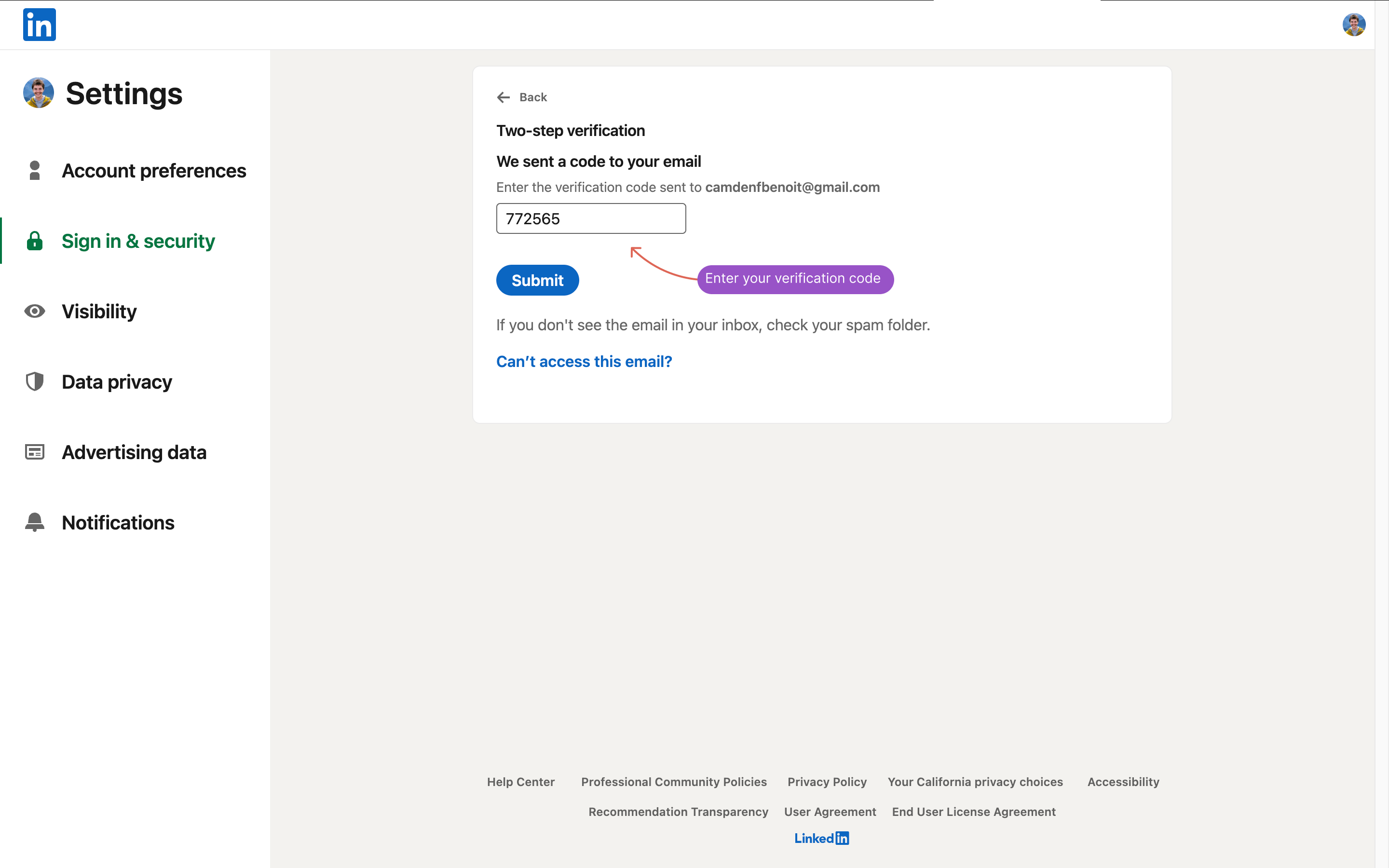
LinkedIn will send a 6-digit code to your registered email address. Enter that code on LinkedIn to continue the setup.
Step 3: Choose verification method
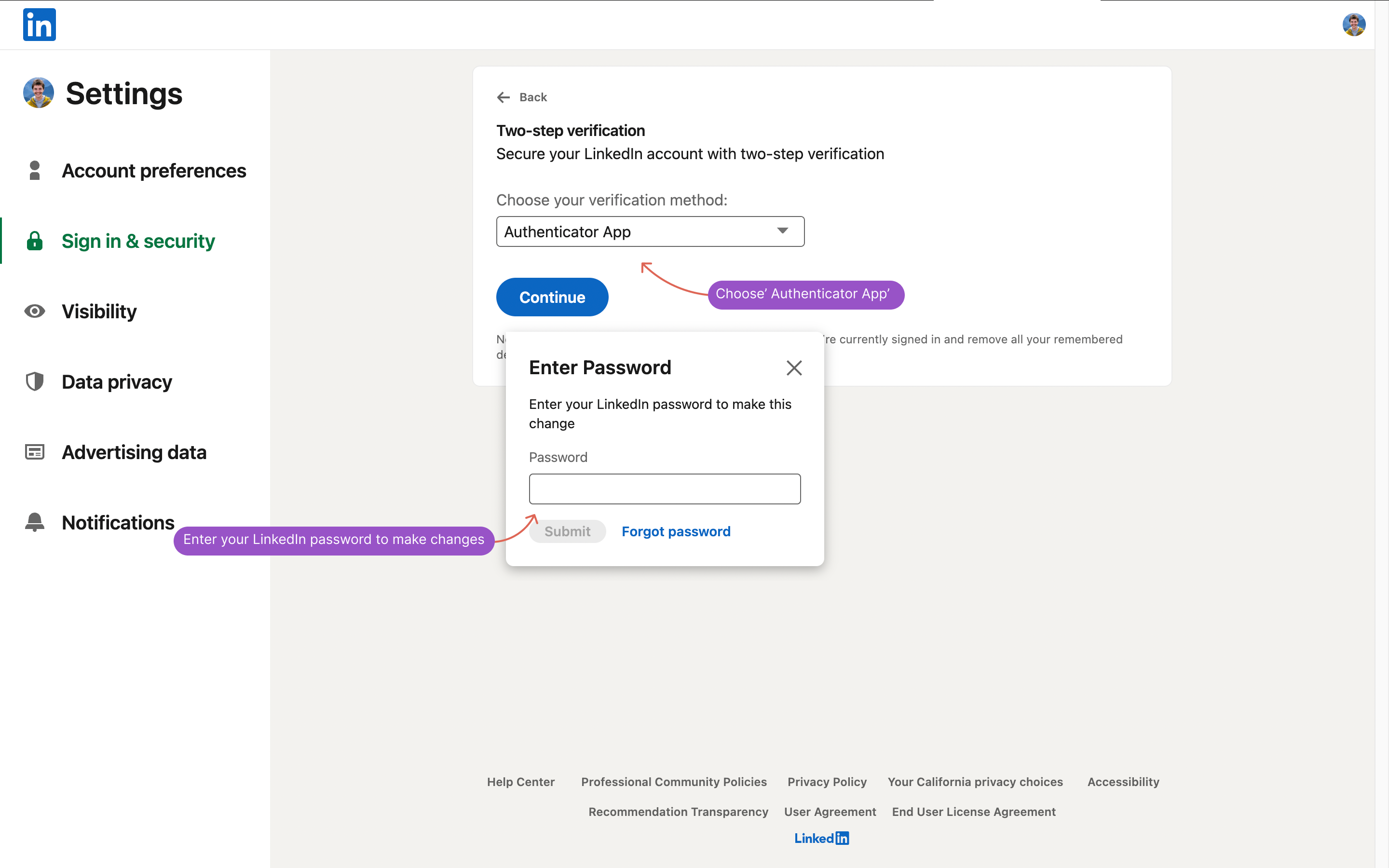
When prompted, select “Authenticator Appˮ or “Phone Numberˮ as your 2FA method. You will be asked to confirm your LinkedIn password before continuing.
Step 4: Link LinkedIn with We-link
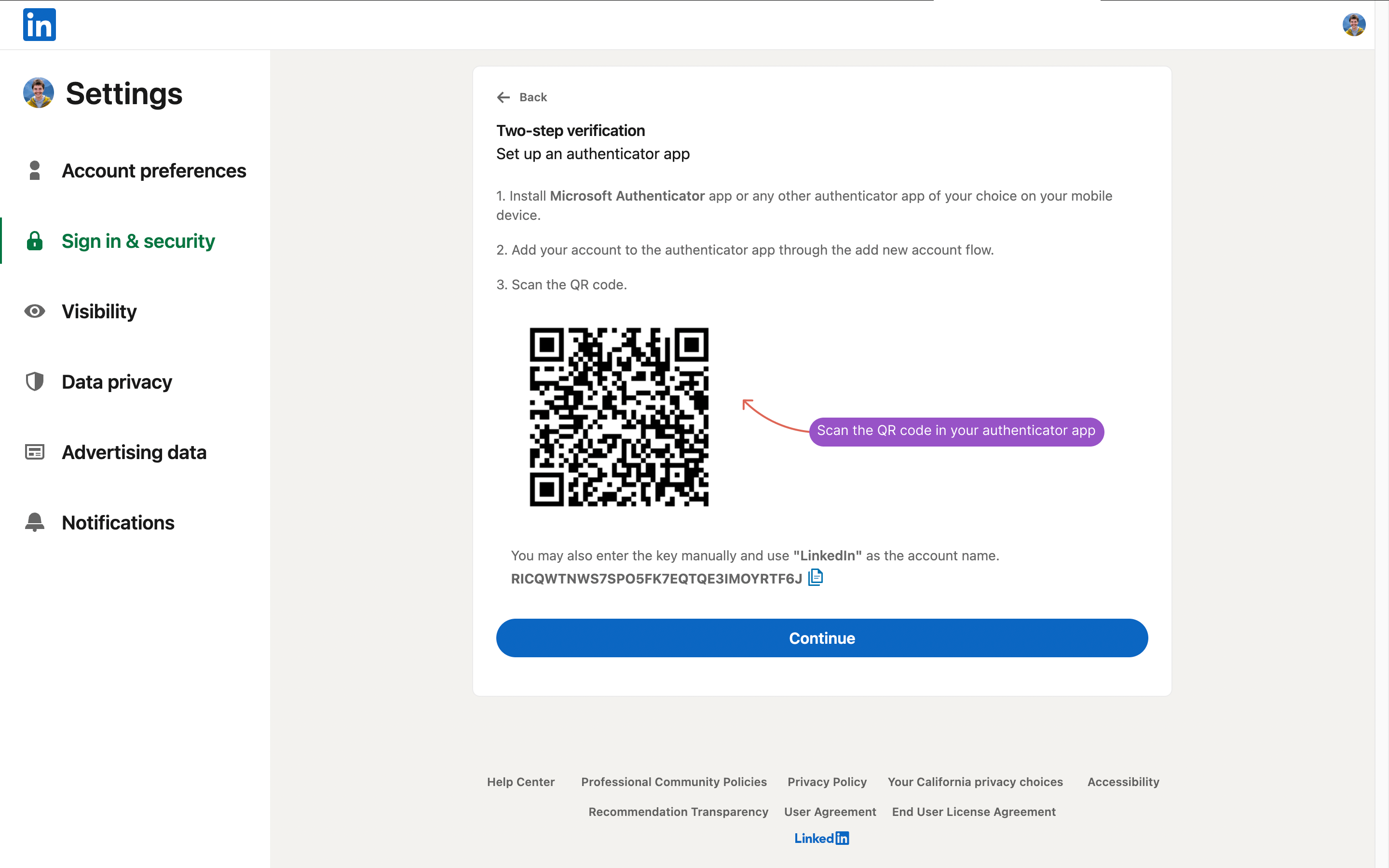
If you selected the Authenticator App option, LinkedIn will display a QR code and a secret key.
- Scan the QR code using your preferred authenticator app (such as Google Authenticator, Microsoft Authenticator, or Authy).
- Copy the secret key (the text shown below the QR code).
- Paste this secret key into the WeLink
login_v2API to complete the connection.
Step 5: Activate 2FA
On LinkedIn, click “Continueˮ to proceed with the setup.
- If using the Authenticator App, open the app and copy the temporary 6-digit code displayed. Paste that code into LinkedIn when prompted to complete the setup.
- If using Phone Number authentication, enter the OTP sent to your phone when prompted.
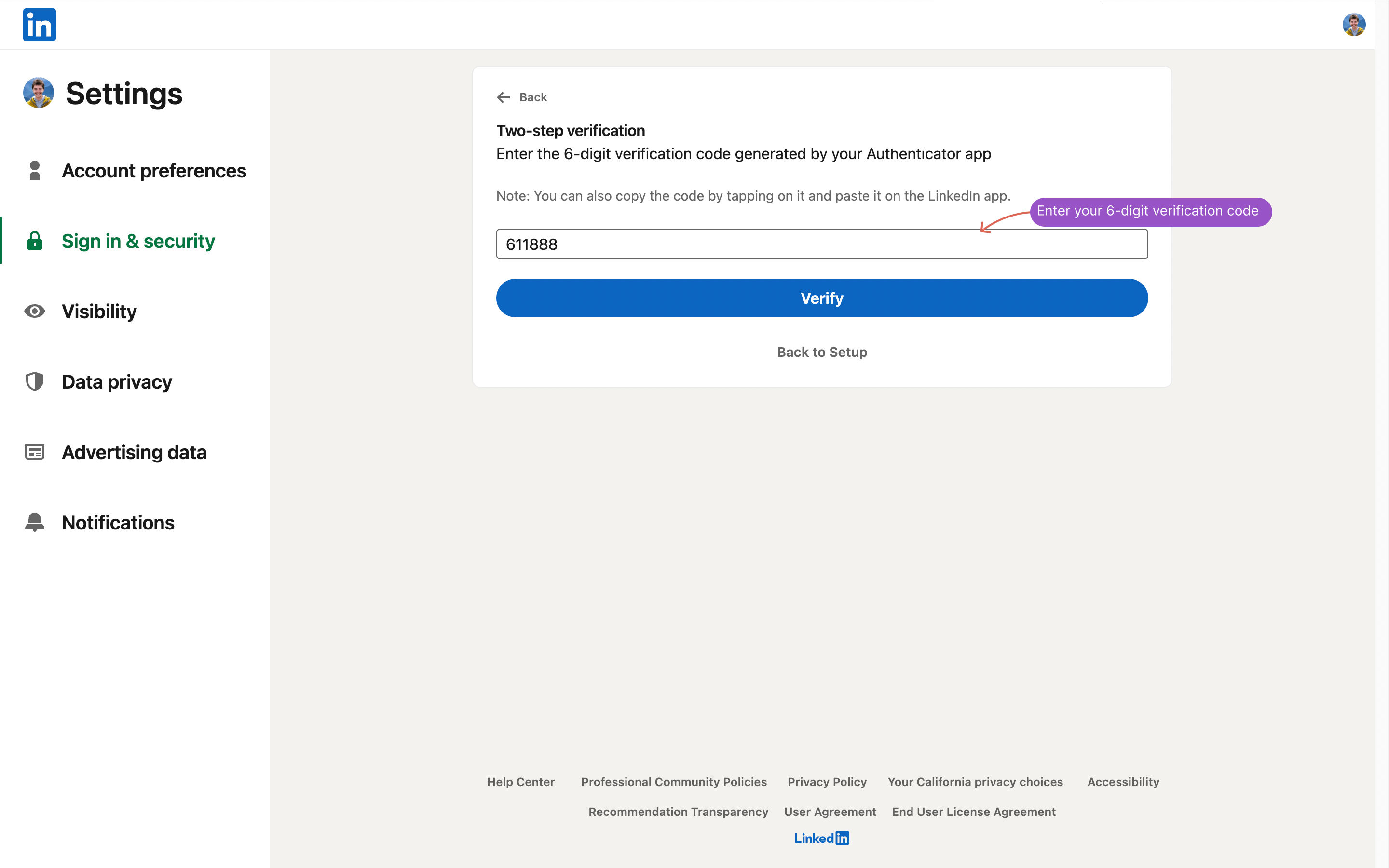
Step 6: Final verification
Once 2FA is successfully enabled:
- If you used an Authenticator App, after hitting the
key, you will be logged in automatically.
login_v2API with the secret - If you used Phone Number authentication, after hitting the
login_v2API, you must call thelogin_codeAPI to submit the latest OTP sent to your phone number.